


Aktywne do:

Dokumentacja
Appearance settings
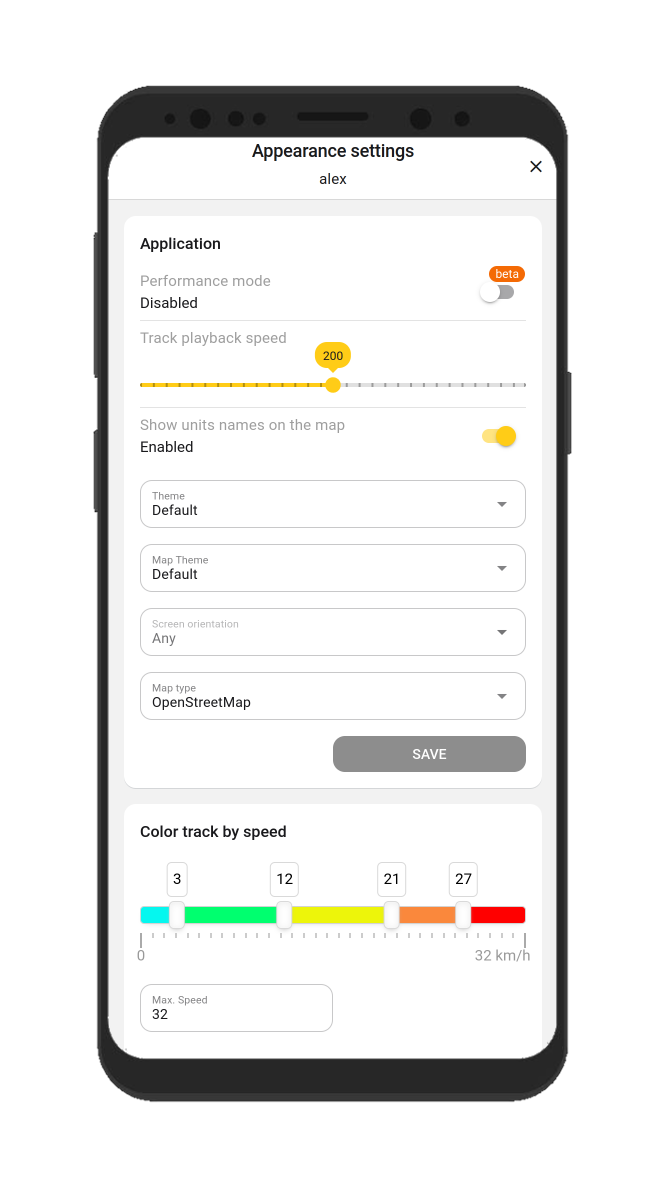
Appearance settings controls how the interface, the map and the tracks are displayed. The settings are grouped in sections.
Application
- Performance mode is a mode for low-performance devices. It disables some animations to improve the performance of the application.
- Track playback speed sets the speed of track playback in the History and Trips of the unit.
- Show units names on the map turns the display of unit names on the map on or off.
- Quick access buttons in carousel turns on or off the display of all quick access buttons as a scrollable strip.
- Theme selects the standard or the dark theme of the application.
- Map Theme selects the standard or the dark theme of the map.
- Screen orientation selects a vertical or horizontal interface display. It is available in the mobile applications only.
- Map type selects the map layer. OSM, Gurtam maps and Bing maps are free. Google maps require a paid subscription.
Color track by speed
This section sets the color of the track by speed. The speed intervals and the color of each interval are customized here.
Timeline settings
Show timeline scale turns the display of the timeline scale on or off. The events displayed on the scale are also selected here.
Track tail and marker
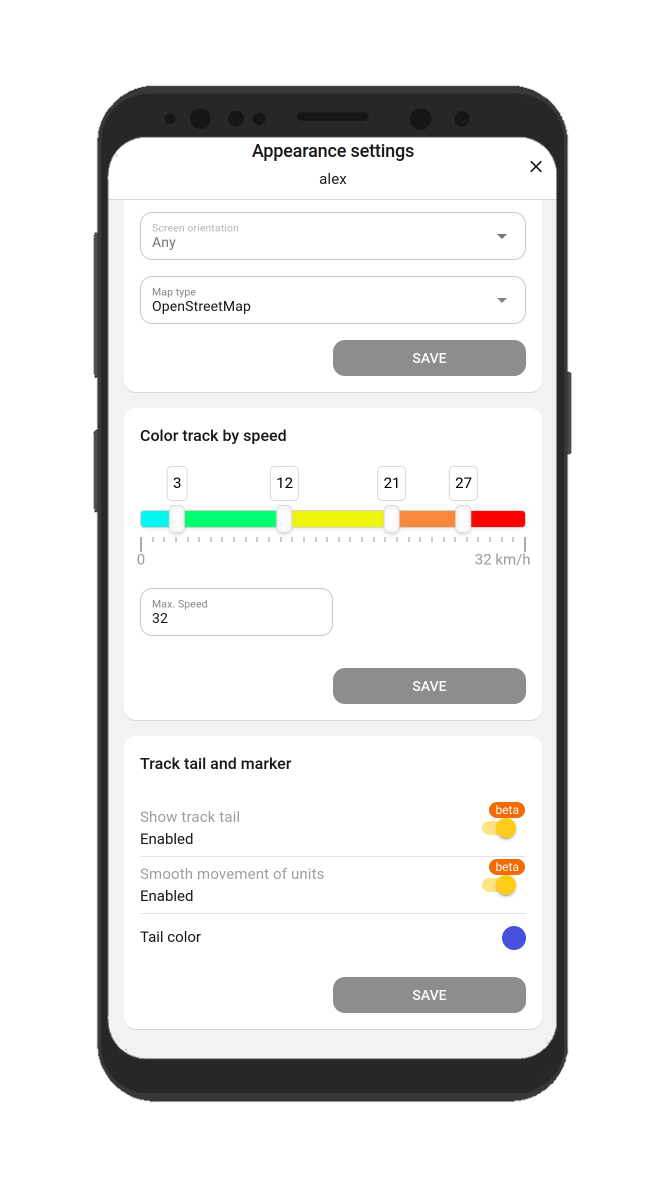
- Show track tail displays the trail the unit has passed in a short period of time.
- Smooth movement of units makes the track display smoother while the unit moves.
- Tail color selects the color of the track tail. It is available only when Show track tail is on.
- Show unit groups groups units on the map. Grouping is intended for a large number of units concentrated in one area.